What Is Blender The Ultimate Open Source 3 D Toolkit
Table of Contents
- Blender: Core Definition, Purpose, and Industry Positioning
- Structured Breakdown of Blender’s Key Capabilities
- Comparative Analysis: Blender vs. Industry Alternatives
- Installation Procedure for Blender
- Step-by-Step Installation Guide
- Technical Features and Workflow Integration
- Modular Workspace System and Productivity Enhancements
- Asset Integration: Import/Export Workflows for Industry Standards
- Rendering Engines: Eevee vs. Cycles Comparison
- Essential Blender Add-Ons for Extended Functionality
- Creative Applications and Industry Use Cases in Blender
- Blender in Game Development: Asset Creation for Unity and Unreal Engine
- Industry Applications Table: Blender’s Role Across Sectors
- Creating a Basic Animated Character in Blender: Rigging to Keyframe Animation
- Advanced Tools and Customization in Blender
- Python API and Scripting Automation
- Real-Time Collaboration Setup
- Keyboard Shortcut Customization
- Physics Simulation Tools
- Community and Learning Resources in Blender
- Official and Third-Party Learning Resources by Skill Level
- Contributing to Blender’s Open-Source Development
- FAQ
- What is Blender software?
- What is Blender used for?
- What is Blender software used for?
- What is Blender 3D?
- What is the Blender app?
- What is Blender’s pride?
Blender stands as a cornerstone in digital content creation, offering a comprehensive open-source suite that redefines industry standards for 3D modeling, animation, and visual effects. As a versatile toolkit, it empowers creators—from indie developers to studio professionals—to design, sculpt, render, and composite projects with unparalleled flexibility. Unlike proprietary alternatives, Blender’s modular architecture and cross-platform compatibility eliminate barriers, fostering innovation without compromising quality.
The software’s integration of real-time rendering engines like Eevee and Cycles, alongside advanced physics simulations and Python scripting, positions it as a self-contained ecosystem. Whether used for game asset pipelines, architectural visualizations, or cinematic storytelling, Blender’s adaptability extends its relevance across disciplines. This exploration delves into its technical foundations, creative applications, and the collaborative networks that sustain its growth as a free, yet industry-grade solution.

Blender: Core Definition, Purpose, and Industry Positioning
Blender is an open-source, cross-platform 3D creation suite developed by the Blender Foundation and maintained by a global community of developers and artists. Its primary function lies in providing a unified workflow for digital content creation (DCC), encompassing modeling, sculpting, animation, rigging, simulation, rendering, motion tracking, video editing, and compositing. Unlike proprietary tools that often require modular subscriptions, Blender integrates these capabilities into a single, freely accessible package, making it a cornerstone for independent creators, studios, and educators.The software’s versatility stems from its modular architecture, allowing users to tailor workflows to specific project needs—whether for film, game development, architectural visualization, or virtual reality. Its open-source nature ensures continuous evolution through community-driven updates, while its compatibility with industry-standard file formats (e.g., FBX, USD, Alembic) facilitates seamless integration into professional pipelines. Below, a structured breakdown of Blender’s key capabilities is provided, followed by a comparative analysis against leading alternatives in the market.
Structured Breakdown of Blender’s Key Capabilities
Blender’s feature set is categorized into six core modules, each addressing a distinct phase of the 3D pipeline. These modules are interconnected, enabling nonlinear workflows where users can iterate between stages without losing progress. The following table outlines the primary functions of each module, along with their relevance to professional workflows:Note: Blender’s real-time preview tools (e.g., Eevee for real-time rendering, Grease Pencil for 2D/3D hybrid workflows) reduce dependency on computationally expensive processes, accelerating prototyping and iteration.
| Module | Primary Functions | Industry Relevance |
|---|---|---|
| Modeling | Polygonal, NURBS, and parametric modeling tools (e.g., Edge Split, Mirror Modifier, Boolean operations). Supports subdivision surfaces, curve modeling, and mesh analysis. | Essential for character design, prop creation, and architectural modeling. |
| Sculpting | Dynamic brush-based sculpting with multi-resolution mesh support, dynamic topology, and simulation-based tools (e.g., Dyntopo, Clay Strips). Integrates with modeling for iterative refinement. | Critical for organic modeling (characters, creatures) and high-poly detailing. |
| Animation & Rigging | Bone-based rigging (Armature system), shape keys, non-linear animation (NLA editor), and physics simulations (e.g., cloth, fluids, rigid body dynamics). Supports facial animation via drivers and shape keys. | Foundational for character animation, game cinematics, and VFX pipelines. |
| Rendering | Two render engines: Cycles (path-traced, GPU/CPU hybrid) and Eevee (real-time rasterization). Supports volumetric lighting, subsurface scattering, and denoising. | Used for final-frame production (Cycles) and interactive previsualization (Eevee). |
| Compositing & VFX | Node-based compositor with tools for tracking (motion, camera), chroma keying, rotoscoping, and procedural generation. Supports OpenColorIO for color management. | Integral for post-production VFX, compositing, and motion graphics. |
| Video Editing | Timeline-based editor with multi-layer support, effects (e.g., tracking, stabilization), and integration with Blender’s 3D tools for hybrid workflows (e.g., live-action + CGI). | Commonly used for short films, explainer videos, and hybrid media projects. |
Comparative Analysis: Blender vs. Industry Alternatives
Blender’s open-source model and integrated workflow distinguish it from proprietary tools, which often require multiple licenses for equivalent functionality. The following table contrasts Blender’s strengths with two leading alternatives: Autodesk Maya (industry standard for animation/VFX) and Cinema 4D (popular for motion graphics and broadcast).Key Considerations for Comparison:
Cost: Blender is free; Maya and Cinema 4D require paid licenses (though student discounts and free trials exist). Learning Curve: Blender’s interface is less standardized than Maya’s, but its flexibility appeals to users seeking customization. Workflow Integration: Maya excels in studio pipelines with tools like USD and Bifrost, while Cinema 4D prioritizes ease of use for motion designers.
| Feature | Blender | Autodesk Maya | Cinema 4D |
|---|---|---|---|
| Core Workflow | Integrated 3D pipeline (modeling → animation → rendering → compositing). Open-source with community plugins. | Modular pipeline with specialized tools (e.g., Bifrost for fluids, Ziva for VFX). Proprietary, subscription-based. | Streamlined for motion graphics and broadcast. Lighter on system resources; focuses on ease of use. |
| Modeling Tools | Advanced sculpting (Dyntopo), hard-surface modeling (Boolean, remesh), and parametric workflows. | Industry-leading for character modeling (e.g., HumanIK, joint tools). Supports subdivision surfaces and NURBS. | Simplified modeling with MetaBall and MoGraph (procedural tools). Less suited for high-poly organic modeling. |
| Animation & Rigging | Rigify for automatic rigging, shape keys, and non-linear animation (NLA). Supports physics simulations (e.g., cloth, hair). | Gold standard for character rigging (Advanced Skeleton, HumanIK). Integrates with Autodesk’s animation tools (e.g., Crowd simulation). | MoGraph for procedural animation; less robust for character rigging but excels in parametric motion. |
| Rendering | Cycles (path-traced) and Eevee (real-time). Supports GPU acceleration and denoising. | Arnold (proprietary) and Maya Software renderer. Arnold is widely used in film/VFX but requires separate licensing. | Redshift (via plugin) or Cinema 4D’s built-in renderer. Optimized for motion graphics and interactive previews. |
| Compositing & VFX | Node-based compositor with tracking (motion, camera), rotoscoping, and procedural generation. Supports OpenColorIO. | High-end VFX tools (e.g., Bifrost, nCloth, nParticles). Integrates with Autodesk’s broader media suite (e.g., Shotgun for pipeline management). | Simplified compositor with MoGraph integration. Focuses on motion graphics effects (e.g., glows, distortions). |
| System Requirements | Low: Runs on most modern PCs (Windows/macOS/Linux). GPU acceleration recommended for rendering. | High: Requires powerful hardware (especially for Arnold rendering). Windows/macOS only. | Moderate: Optimized for mid-range systems. Windows/macOS only. |
| Community & Support | Active open-source community (forums, tutorials, plugins). Official documentation and Blender Studio projects. | Enterprise support via Autodesk. Extensive third-party plugins (e.g., Thinkbox Kraken). | Maxon’s official support and a dedicated motion graphics community. Limited open-source contributions. |
| File Compatibility | Supports industry standards (FBX, USD, Alembic) and proprietary formats (e.g., .blend). | Native support for USD, FBX, and Autodesk formats (e.g., .mb). Limited Linux support. | FBX, Cinema 4D (.c4d), and limited USD support. Proprietary format is well-optimized for its workflow. |
Installation Procedure for Blender
Blender’s cross-platform compatibility ensures accessibility across Windows, macOS, and Linux systems. Below are step-by-step instructions for installation, including system requirements and troubleshooting common errors.System Requirements (Official Recommendations):
Windows: 64-bit OS (Windows 10/11), 8GB RAM (16GB+ recommended for rendering), OpenGL 3.3+ compatible GPU. macOS: macOS 10.13 (High Sierra) or later, 8GB RAM, Metal-compatible GPU. Linux: 64-bit distribution (Ubuntu 18.04+, Fedora, Arch), 8GB RAM, OpenGL 3.3+.
Step-by-Step Installation Guide
1. Download BlenderTechnical Features and Workflow Integration
Blender’s architecture is designed to streamline complex 3D pipelines through a modular, workspace-driven interface that adapts to user roles—from character artists to VFX supervisors. The platform’s flexibility ensures seamless transitions between tasks, such as modeling, rigging, animation, and rendering, without requiring context-switching between disparate software. This integration is further reinforced by robust asset interchange capabilities, enabling collaboration across pipelines that rely on industry-standard formats. Below, the technical underpinnings of Blender’s workflow—including its workspace system, asset compatibility, and rendering engines—are examined in detail, alongside curated extensions that enhance productivity.Modular Workspace System and Productivity Enhancements
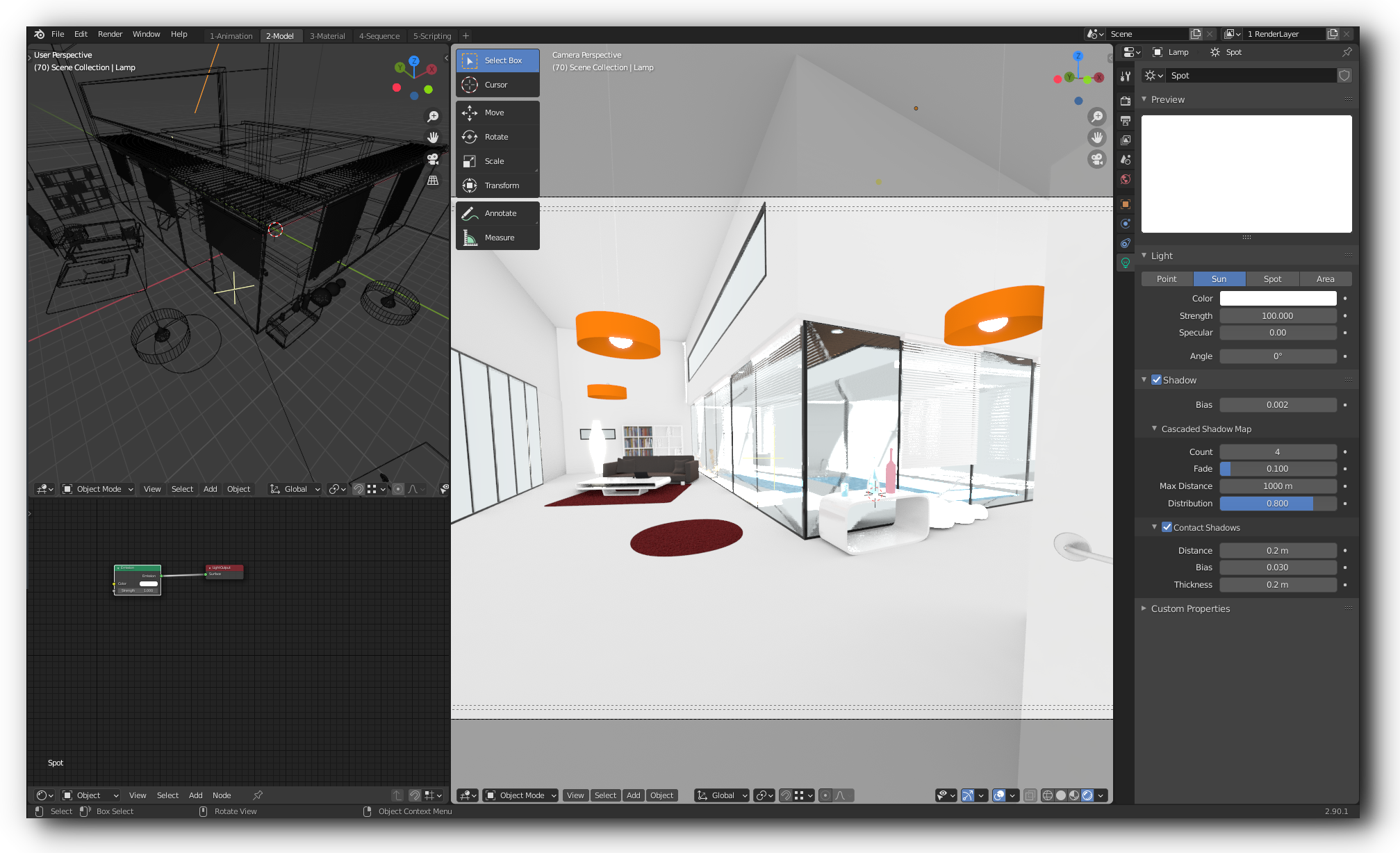
Blender’s workspace system organizes tools into specialized layouts (e.g., Layout, Sculpting, Animation, Rendering, Compositing), each tailored to optimize efficiency for distinct workflows. The Layout workspace serves as a default hub, consolidating essential panels (e.g., 3D Viewport, Outliner, Properties) for general tasks, while specialized workspaces minimize clutter by exposing only relevant tools. For example:Workspaces can be customized via Screen Layouts, allowing users to save and switch between configurations (e.g., a VFX artist might prioritize the Compositor workspace, while a game developer could use a Grease Pencil + Eevee setup). This modularity reduces cognitive load by presenting only task-relevant tools, a principle validated by studies on cognitive ergonomics in 3D software (e.g., ACM CHI 2019 on tool visibility in creative workflows).
Asset Integration: Import/Export Workflows for Industry Standards
Blender supports a comprehensive suite of file formats to facilitate pipeline interoperability, with native or plugin-based support for:Key Workflows:
Best Practices:
Rendering Engines: Eevee vs. Cycles Comparison
Blender offers two primary rendering engines, each optimized for distinct use cases. Their trade-offs are summarized below:Eevee (Real-Time Rendering)Hybrid Workflows:
Use Cases: Game development, previsualization, interactive 3D, and rapid iteration. Performance: GPU-accelerated with ~1–10 FPS (depending on scene complexity), enabling real-time feedback. Visual Characteristics: Screen-space effects (SSAO, bloom, volumetric fog) for approximate global illumination. Limited ray-traced shadows (default: shadow caching). No true global illumination (uses screen-space reflections and light probes). Advantages: Instant preview of lighting/materials. Compatible with Grease Pencil for 2D/3D hybrid workflows. Lower hardware requirements than Cycles (runs on integrated GPUs). Limitations: Artifacts in complex scenes (e.g., fireflies, banding in reflections). No path tracing, restricting photorealism for final frames. Cycles (Path-Traced Rendering)
Use Cases: Film, high-end VFX, architectural visualization, and photorealistic previews. Performance: CPU/GPU hybrid, with ~0.1–1 FPS for complex scenes (varies by hardware). Visual Characteristics: Physically accurate (subsurface scattering, caustics, volumetric rendering). Denoyer-based denoising for cleaner renders at lower samples. Supports all shaders (e.g., principled BSDF, hair/volume). Advantages: Industry-standard quality for final output. Customizable sampling (e.g., adaptive sampling for faster convergence). OpenCL/CUDA support for cross-platform rendering. Limitations: High resource usage (requires dedicated GPUs for large scenes). Longer iteration times compared to Eevee.
Essential Blender Add-Ons for Extended Functionality
Blender’s add-on ecosystem expands capabilities without modifying the core application. Below are 10 categorized add-ons that address common workflow gaps, selected for their adoption in professional pipelines and community validation (e.g., Blender Market, Gumroad).-
Hard Ops (Modeling)
- Purpose: Non-destructive boolean operations with undo/redo support, critical for hard-surface modeling (e.g., mechanical parts, architecture).
- Key Features: Voxel-based sculpting, mesh analysis tools, and custom operators for complex cuts.
-
Quick Rig (Animation)
- Purpose: Automates rigging workflows for characters, generating bones, IK/FK chains, and controls in seconds.
- Key Features: Weight painting presets, auto-rigging for bipeds/quadrupeds, and export-ready skeletons for games.
-
Material Override (Rendering)
- Purpose: Temporarily overrides materials/textures in the viewport for lighting tests or quick iterations.
- Key Features: Layer-based overrides, HDR environment swapping, and render-time toggles.
-
BoxCutter (Modeling)
- Purpose: Procedural mesh subdivision for hard-surface modeling, replacing manual edge loops.
- Key Features: Customizable cut patterns, boolean-friendly results, and performance optimizations for large meshes.
-
Anipose (Animation)
- Purpose: Pose-to-pose animation with in-betweening tools, reducing keyframe density while maintaining fluidity.
- Key Features: Auto-smoothing, mirroring, and graph-based pose blending.
-
Node Wrangler (Compositing/Shaders)
- Purpose: Automates node editor workflows with shortcuts, group management, and expression evaluation.
- Key Features: Batch node linking, math expression solver
- Topology Optimization: Using quad-dominant meshes and edge loops to preserve deformability during animation.
- UV Unwrapping: Employing Smart UV Project or Lightmap Packing for clean texture mapping.
- Normal/Ambient Occlusion Baking: Exporting high-poly details to low-poly models via Cycles or Eevee render engines.
- Rigging for Animation: Applying Armatures with Bone Heat Weighting for skeletal deformation.
- Subdivision Surface Modeling: Using Catmull-Clark or Simple subdivisions for smooth transitions.
- Displacement Maps: Generating height maps from sculpted details (e.g., via Dyntopo or Multiresolution Modifiers).
- Material Setup: Configuring Principled BSDF shaders with procedural textures (e.g., Node Wrangler for complex setups).
- Export for Baking: Converting high-poly models to OBJ/USD and baking in Blender or external tools like XNormal.
- Unity: Hollow Knight (2017) – Low-poly character and environment designs with hand-crafted animations.
- Unreal Engine: The Last of Us Part II (2020) – High-poly character models (e.g., Ellie) with baked details for realism.
- Indie Games: Celeste (2018) – Pixel-art-inspired low-poly assets with Grease Pencil for UI elements.
- Big Buck Bunny (2008) – Fully open-source animated film with Cycles rendering.
- The Man in the High Castle (2015–2019) – VFX sequences for Amazon Studios (e.g., alternate history environments).
- Short Circuit (2021) – Grease Pencil animations for 2D/3D hybrid storytelling.
- Sculpting: Dynamic Topology, Multiresolution.
- Simulation: Mantaflow (fluids), Rigid Body Physics.
- Compositing: Node Editor for VFX integration.
- Grease Pencil: 2D animation on 3D layers.
- Zaha Hadid Architects – Conceptual designs for Heydar Aliyev Center (Baku) using Blender’s sculpting tools.
- Virtual Tours for Real Estate – Eevee-based walkthroughs for properties (e.g., Matterport integrations).
- Parametric Bridges – Geometry Nodes scripts for generative architecture (e.g., Grasshopper alternatives).
- Hard Surface Modeling: Box Modeling, Mirror Modifier.
- Procedural Textures: Node-Based Materials (e.g., Displacement for brickwork).
- Real-Time Rendering: Eevee with HDRI lighting for photorealism.
- Add-ons: Archimesh for architectural primitives.
- Dyson Vacuum Designs – Hard-surface modeling for ergonomic studies.
- IKEA Product Visuals – Eevee-based catalog renders for furniture.
- Tesla Cybertruck – Procedural panels and metalwork simulations (pre-release concept art).
- Boolean Operations: For precise mechanical parts.
- Subdivision Surface: Smooth transitions for consumer goods.
- Material Library: Principled BSDF for realistic plastics/metals.
- Animation: Rigify for product demonstration loops.
- Start with a high-poly sculpt (e.g., using Dyntopo) or import a scanned mesh.
- Retopologize using quad-based topology in Edit Mode, ensuring clean edge loops for facial features and limbs.
- Recommended Tool: Remesh Modifier (for organic shapes)
- Bpy Module: The primary interface for accessing Blender’s data, exposing operators, properties, and scene elements.
- Add-ons: Python scripts packaged as add-ons (e.g., HardOps, BoxCutter) extend Blender’s native capabilities.
- Procedural Generation: Scripts can create parametric models, rigs, or even entire scenes from algorithmic rules.
- Integration with External Libraries: Libraries like NumPy or PyOpenGL enhance scripting for complex calculations or real-time rendering.
- Use context managers (`bpy.context`) to ensure scripts operate within the active scene.
- Leverage operators (`bpy.ops`) for actions like mesh creation or modifier application.
- Error handling (`try-except`) prevents crashes during batch processing.
- Performance optimization: Batch operations (e.g., `bpy.ops.object.mode_set(mode='EDIT')`) minimize redraws.
- Ensure all assets (textures, models) are linked or packed to avoid missing files during transfer.
- Set up render layers and compositing nodes for batch processing.
- AWS Batch Render:
- Upload project files to Amazon S3.
- Use AWS CLI or SDK to submit jobs via a preconfigured Blender script.
- Example command:
- Install the BlendFarm add-on (via Edit > Preferences > Add-ons).
- Configure API keys and server endpoints in Blender’s Render Properties > Network Render.
- Split scenes into tiles or frames for parallel processing.
- Use Blender’s network rendering (`Render > Network Render`) to distribute jobs locally or via cloud.
- Track job status via cloud dashboards (AWS CloudWatch, BlendFarm UI).
- Download rendered frames/textures to a centralized storage (e.g., Google Drive, S3).
- Blender Socket: Enables real-time scene sharing between instances (useful for live previews).
- Blender ID Sync: Syncs preferences and add-ons across devices via Blender’s cloud service.
- Backup keymaps (Keymap > Save Current or export via File > Defaults > Save Startup File).
- Use add-ons like Keying to sync shortcuts across projects.
- Avoid modifier conflicts: Prioritize shortcuts with unique key combinations (e.g., Ctrl+Shift over Ctrl).
- Use Case: Fabric draping, hair dynamics, or dynamic drapes (e.g., Avatar’s clothing).
- Key Settings:
- Collision: Enable Self-Collision for realistic folding.
- Air Damping: Adjust to control drag (e.g., `0.1` for lightweight fabrics).
- Quality: Increase *Steps per
-
Beginner Resources
- Official Manual: Blender Documentation – Covers core workflows, keyboard shortcuts, and introductory projects with visual guides.
- YouTube:
- Blender Foundation – Official tutorials on modeling, sculpting, and animation.
- Blender Guru (Andrew Price) – Beginner-friendly series like "Blender for Beginners" and "Donut Tutorial."
- Paid Courses:
- Blender 2.8 for Beginners (Blender Market) – Project-based introduction to 3D workflows.
- Blender 3D Modeling for Beginners (Udemy) – Structured curriculum with exercises.
-
Intermediate Resources
- Official Manual: Advanced sections on simulations and Cycles rendering.
- YouTube:
- CGCookie – Project-based tutorials (e.g., "Hard Surface Modeling" series).
- Blender Artists – Community-driven tutorials on rigging and animation.
- Paid Courses:
- Character Creation Pipeline (Blender Market) – Focuses on rigging and skinning.
- School of Motion (Blender Specialization) – Industry-relevant workflows for VFX and motion graphics.
-
Advanced Resources
- Official Manual: Advanced Topics – Includes Python API, add-on development, and optimization.
- YouTube:
- Blender Nation – Deep dives into Python scripting and custom tools.
- Blender Developer Stream – Insights into core development and experimental features.
- Paid Courses:
- Blender Python Scripting (Blender Market) – Extending Blender with custom tools.
- ArtStation Learning (Advanced Blender) – Masterclasses on procedural workflows and large-scale projects.
- Books:
- The Blender 3D Graphical Interface (by Andrew Denton) – Covers UI customization and workflow optimization.
- Blender 3D: Designing Objects (by John M. Blain) – Advanced modeling techniques for professionals.
-
Reporting Bugs or Feature Requests
- Access the Blender Project Management platform to submit issues via the "Report a Bug" or "New Task" options.
- Include:
- Reproducible steps with
blendfiles or screenshots. - Software version and system specifications.
- Clear description of expected vs. actual behavior.
- Reproducible steps with
- Bugs are triaged by developers; complex issues may require additional context or patches.
-
Submitting Code Patches
- Fork the Blender Git Repository and clone locally using:
git clone https://git.blender.org/blender.git- Follow the Git Workflow Guide to create branches and submit patches via:
git format-patch origin/main --stdout > patch.diff, then upload to the developer portal.- Patches undergo peer review; adherence to coding standards is mandatory.
-
Non-Technical Contributions
- Documentation: Edit the official manual via GitHub Pull Requests or contribute to wiki pages.
- Translations: Join the Blender Localization Team to translate UI elements or documentation.
- UI/UX Feedback: Submit suggestions via the UI Task Track
Blender’s enduring appeal lies in its ability to merge technical precision with artistic freedom, democratizing high-end production tools for global creators. From automating workflows through scripting to leveraging community-driven resources, its ecosystem thrives on continuous evolution. As digital content creation becomes increasingly accessible, Blender remains a testament to open-source innovation—bridging gaps between ambition and execution. For professionals and enthusiasts alike, mastering this toolkit unlocks boundless possibilities in shaping the future of visual media.
FAQ
What is Blender software?
Blender is a free, open-source 3D computer graphics software used for creating animations, visual effects, 3D modeling, sculpting, rendering, motion tracking, and video editing. It supports an extensive toolset for professionals and beginners alike, with a strong community and regular updates.
What is Blender used for?
Blender is primarily used for 3D modeling, animation, and rendering, but it also includes tools for video editing, compositing, game development (via the Game Engine), and even motion graphics. Artists, designers, and filmmakers rely on it for everything from character creation to architectural visualization.
What is Blender software used for?
Blender software is used for professional-grade 3D creation, including sculpting digital characters, designing environments, generating animations, and producing high-quality renders. It’s also popular for game asset development, simulation (like fluids or physics), and post-production effects.
What is Blender 3D?
Blender 3D refers to the core functionality of the Blender software, which specializes in three-dimensional modeling, animation, and rendering. It allows users to create detailed 3D scenes, simulate lighting, and generate realistic or stylized visuals for films, games, or virtual reality.
What is the Blender app?
The Blender app is the official desktop application for Blender, available for Windows, macOS, and Linux. It provides a full-featured workspace for 3D modeling, animation, and video editing, with no limitations on usage (unlike some mobile versions). The app is regularly updated by the Blender Foundation.
What is Blender’s pride?
Blender’s pride likely refers to its status as a free and open-source software, developed by the Blender Foundation and community without proprietary restrictions. Another point of pride is its industry-level capabilities, rivaling expensive commercial tools, while maintaining active development and a passionate user base.
Creative Applications and Industry Use Cases in Blender
Blender’s versatility extends beyond technical workflows, positioning it as a cornerstone tool in creative industries where visualization, storytelling, and iterative design are critical. Its open-source nature and robust feature set—ranging from procedural modeling to real-time rendering—enable artists, studios, and developers to produce high-quality assets efficiently. Below, the focus shifts to its practical applications in game development, film production, architecture, and product design, alongside specialized workflows for character animation and 2D integration.Blender in Game Development: Asset Creation for Unity and Unreal Engine
Blender is widely adopted in game development for its compatibility with major engines like Unity and Unreal Engine, where it serves as a primary tool for 3D modeling, texturing, rigging, and animation. Its FBX export support and USD (Universal Scene Description) integration ensure seamless workflows, while plugins like BlenderKit streamline asset management. Below are two distinct modeling approaches—low-poly (optimized for real-time performance) and high-poly (used for baking normal/ambient occlusion maps)—along with their respective pipelines.Low-Poly Modeling Workflow for Games
Low-poly assets prioritize geometric simplicity and vertex efficiency to maintain frame rates in real-time engines. Key steps include:
High-Poly Modeling Workflow for Detail Preservation
High-poly models capture intricate details for texture baking and subsurface scattering. The process involves:
Example Projects and Industry Adoption
Industry Applications Table: Blender’s Role Across Sectors
Blender’s adaptability spans multiple industries, each leveraging its unique strengths. The following table highlights its primary role, notable projects, and key tools in film, architecture, and product design.| Industry | Blender Role | Example Project | Key Tools Used |
|---|---|---|---|
| Film & VFX | Previsualization (previs), concept art, and compositing for live-action integration. Used for shot blocking, storyboarding, and procedural effects (e.g., fluid dynamics, destruction). Open-source alternative to Maya or Houdini for indie studios and freelancers. |
||
| Architecture & Visualization | Architectural visualization (ArchViz) with procedural modeling (e.g., Geometry Nodes) and real-time rendering (e.g., Eevee). Used for client presentations, virtual tours, and BIM (Building Information Modeling) integration via USD or FBX. Competes with 3ds Max and SketchUp but offers superior modular workflows for parametric design. |
||
| Product Design & Industrial Visualization | Conceptual prototyping, technical illustrations, and marketing renderings for consumer products. Used in automotive, electronics, and furniture design to visualize products before physical manufacturing. Replaces SolidWorks or Rhino for organic shapes and Photoshop for final compositing. |
Creating a Basic Animated Character in Blender: Rigging to Keyframe Animation
Blender’s character animation pipeline follows a structured approach from modeling to final render, with rigging and keyframe animation as core steps. Below is a step-by-step breakdown, including recommended resources for further learning.1. Base Mesh and Retopology
Advanced Tools and Customization in Blender
Blender’s extensibility and advanced toolset empower users to push creative boundaries while optimizing workflows through automation, real-time collaboration, and physics-based simulations. The platform’s Python API enables procedural workflows, while its simulation engines deliver hyper-realistic dynamics. Customization—from keyboard shortcuts to cloud rendering—further integrates Blender into professional pipelines, reducing manual labor and enhancing precision.Blender’s architecture supports modular development, allowing artists, engineers, and developers to extend functionality without proprietary limitations. Below, the focus shifts to scripting automation, collaborative workflows, keyboard efficiency, and physics simulations, each tailored for industry-grade applications.
Python API and Scripting Automation
Blender’s Python API provides full access to core functionalities, enabling users to automate repetitive tasks, generate procedural assets, or develop custom tools. Scripts interact with Blender’s data structures—such as objects, materials, and modifiers—via a well-documented interface. For example, a script can batch-export assets, adjust animation curves dynamically, or generate fractal terrains using noise functions.Key API Features:
Example: Automating Rigging with Python
import bpy
# Select all armature bones and apply a custom scale
for bone in bpy.data.armatures["Armature"]. bones:
bone.scale = (0.95, 0.95, 0.95) # Adjust bone thickness uniformly
This script iterates over an armature’s bones, applying a uniform scale reduction—useful for refining rigs without manual adjustments.
Best Practices for Scripting:
Real-Time Collaboration Setup
Blender’s network rendering and cloud collaboration tools facilitate distributed workflows, critical for studios with remote teams. Services like BlendFarm, AWS Batch Render, or Google Cloud Rendering enable parallel processing, while Blender’s built-in network rendering synchronizes tasks across machines. For real-time feedback, Blender’s socket-based communication (via add-ons like Blender Socket) allows artists to share scenes dynamically.Step-by-Step Guide to Cloud Rendering with Blender
1. Prepare the Scene
2. Configure Cloud Service
aws batch submit-job --job-name "blender_render" --job-queue "render_queue" --job-definition "blender_definition" --container-overrides '{"command": ["blender", "-b", "scene.blend", "-o", "//render_####.png"]}'
- BlendFarm:
3. Distribute Tasks
4. Monitor and Retrieve Results
Collaboration Add-ons:
Keyboard Shortcut Customization
Efficient navigation and tool access in Blender hinge on customizable shortcuts, allowing users to tailor workflows to their discipline (e.g., modeling, animation, VFX). Below is a table illustrating common modifications, default shortcuts, and optimized alternatives for 3D modeling and animation workflows.| Modification | Default Shortcut | Custom Shortcut | Use Case |
|---|---|---|---|
| Toggle Edit Mode (Mesh) | Tab | Ctrl+Tab | Free up Tab for custom add-ons (e.g., BoxCutter toggle). |
| Extrude Region | E → E | Alt+E | Reduce hand strain during extrusions in complex models. |
| Loop Cut | Ctrl+R | Ctrl+Shift+R | Avoid accidental radius adjustments during cuts. |
| Keyframe Insertion | I | K | Align with animation keyboards (e.g., K for "Key"). |
| Toggle X-Ray Viewport | Alt+X | Shift+X | Improve visibility in dense scenes without modifier conflicts. |
| Mirror Modifier Toggle | Ctrl+M | Ctrl+Shift+M | Prevent accidental modifier overrides in modeling. |
| Play Animation | Alt+A | Spacebar | Mirror real-world media player shortcuts for animators. |
| Reset View Rotation | Ctrl+Alt+0 | Home | Faster navigation in large scenes (e.g., architecture). |
1. Navigate to Edit > Preferences > Keymap.
2. Search for the desired operator (e.g., Mesh > Extrude Region).
3. Click the Add Shortcut button and assign a new key combination.
4. Test in 3D Viewport to ensure no conflicts with add-ons.
Pro Tips:
Physics Simulation Tools
Blender’s simulation suite—comprising cloth, fluid, rigid body, and soft body dynamics—enables realistic interactions for VFX, animation, and engineering. Each system leverages modifiers and physics engines (e.g., Bullet, Mantaflow) to solve simulations procedurally. Below are configurations for cloth, fluid, and rigid body setups, optimized for production pipelines.Cloth Simulation
Community and Learning Resources in Blender
Blender’s growth as an industry-standard tool is closely tied to its vibrant open-source community and extensive educational ecosystem. Access to structured learning materials, collaborative platforms, and direct contributions to development ensures users—from hobbyists to professionals—can continuously refine their skills and influence the software’s evolution. This section explores curated learning resources categorized by proficiency, outlines pathways for community engagement, and details how individuals can contribute to Blender’s open-source development.Official and Third-Party Learning Resources by Skill Level
Blender’s official documentation and third-party content provide structured pathways for users at all stages of proficiency. Below is a categorized list of resources, emphasizing accessibility, depth, and practical application.For beginners, resources focus on foundational concepts such as interface navigation, basic modeling, and rendering principles. Intermediate users benefit from project-based tutorials and advanced techniques like rigging, simulation, and compositing. Advanced learners engage with custom scripting, optimization, and specialized workflows for industries such as VFX or game development.
Note: Official resources (e.g., Blender’s manual and YouTube channel) are freely accessible and regularly updated to align with software releases. Third-party platforms may offer additional depth but should be cross-referenced with official documentation for accuracy.
Contributing to Blender’s Open-Source Development
Blender’s open-source nature relies on community contributions, including bug reports, code patches, and documentation improvements. The following outlines the structured process for engaging with development, from reporting issues to submitting changes.Contributions are categorized into technical (code, bug fixes) and non-technical (documentation, translations, UI/UX feedback). The Blender Development Fund and Blender Developer Portal provide resources for contributors, including guidelines, tools, and mentorship programs.
Leave a Comment
Comments are moderated before appearing. The data you submit is processed according to the Privacy Policy of Voltefac.