What Is A Jar File And Its Role In Java Programming
Table of Contents
- Introduction to .jar Files: Core Concepts
- File Structure and Components of a .jar File
- Comparison of .jar with Other Archive Formats
- Technical Differences and Use Case Justifications
- How .jar Files Function: Technical Workings
- Java Runtime Environment (JRE) and JVM Execution Process
- Compiling Java Source Code and Packaging into a .jar File
- Role of the `Main-Class` Attribute in the Manifest File
- System Requirements and Troubleshooting Common Errors
- Practical Applications of .jar Files
- Integration in Development Tools and IDEs
- Enterprise Deployment Scenarios
- Real-World Use Cases Table
- Advantages of Self-Contained .jar Distribution
- Potential Drawbacks and Mitigations
- Security and Best Practices for .jar Files
- Security Risks Associated with .jar Files
- Digital Signatures and Code Signing
- Step-by-Step: Signing a .jar File with `jarsigner`
- Exploiting the Manifest: Malicious `Main-Class` Override
- Best Practices for Secure .jar Development and Distribution
- GitHub Actions Example
- Tools and Methods for Working with .jar Files
- Comparison of Tools for .jar File Operations
- Safe Extraction and Modification of .jar Files
- FAQ
- What is a .jar file and how does it work?
- What is a JAR file in Java?
- What is a JAR file in Minecraft?
- What is a JAR file used for?
- What is a JAR file type?
- What is a JAR file extension?
A .jar file represents the cornerstone of Java application distribution, encapsulating compiled bytecode, metadata, and resources into a single, portable archive. As the standard format for deploying Java programs, it combines efficiency with versatility, enabling seamless execution across platforms while maintaining structured organization. Unlike generic archives, .jar files integrate tightly with the Java Runtime Environment (JRE), ensuring compatibility and security through standardized manifest configurations and digital signatures.
At its core, a .jar—short for Java Archive—serves as both a container for class files, images, and configuration data and a deployment mechanism for Java applications. Its hierarchical structure, including the critical MANIFEST.MF file, defines execution parameters such as the entry point (Main-Class) and dependencies, distinguishing it from broader archive formats like .zip or .war. This technical sophistication underpins its widespread adoption in enterprise software, development tools, and mobile applications, where reliability and modularity are paramount.

Introduction to .jar Files: Core Concepts
The .jar (Java Archive) file format serves as a standardized packaging mechanism in Java, enabling the bundling of compiled class files, metadata, and auxiliary resources into a single distributable unit. Originating from the Java Archive specification, this format extends the capabilities of traditional archive systems by incorporating runtime configurations and digital signatures to ensure integrity and security. Unlike generic compression formats, .jar files are intrinsically tied to the Java Virtual Machine (JVM), facilitating seamless execution of Java applications through the `java` command or deployment in enterprise environments.
The design of .jar files aligns with modularity and portability, addressing challenges such as dependency management, versioning, and cross-platform compatibility. By encapsulating resources within a structured hierarchy, .jar files support self-contained applications, libraries, and plugins, while adhering to the Java Class Library (JCL) standards. Their role extends beyond mere archival, functioning as a foundational element in Java Enterprise Edition (Java EE) and Java SE deployments.
File Structure and Components of a .jar File
A .jar file adheres to a hierarchical directory structure, combining compression with metadata to define execution parameters and resource locations. At its core, the archive consists of:The manifest file may also include:
A well-structured .jar file adheres to the principle of self-descriptiveness, where the manifest and directory layout collectively define the application’s runtime behavior without external configuration.
Comparison of .jar with Other Archive Formats
While .jar files share foundational similarities with other archive formats, their purpose and technical constraints differentiate them based on use cases. Below is a comparative analysis of .jar, .zip, and .war files, highlighting their distinct roles in software development and deployment.| Purpose | File Extension | Key Components | Common Use Cases |
|---|---|---|---|
| Bundling Java-specific resources (class files, metadata, and dependencies) for execution or distribution. | .jar |
|
|
| Generic compression and archival of files without platform-specific constraints. | .zip |
|
|
| Web application packaging for deployment in Java EE servlet containers (e.g., Tomcat, WildFly). | .war |
|
|
The choice between .jar, .zip, and .war depends on the execution environment and requirements:
Use .jar for Java-centric deployments requiring runtime metadata. Use .zip for generic archival without platform dependencies. Use .war for web applications requiring servlet container integration.
Technical Differences and Use Case Justifications
The distinctions between these formats stem from their design objectives and integration with Java’s ecosystem. For instance:A practical example illustrates this differentiation:
The Java specification (JSR 277) further standardizes .jar files as the primary unit of modularity in Java SE 6+, enabling automatic module system (AMS) support in Java 9+, where .jar files can declare module dependencies via `module-info.class`.
How .jar Files Function: Technical Workings
The execution of a .jar (Java Archive) file relies on the Java Runtime Environment (JRE), a critical component that bridges compiled Java bytecode with the underlying operating system. At its core, the Java Virtual Machine (JVM) interprets or compiles bytecode into machine-specific instructions, ensuring platform independence. This section explores the technical workflow of .jar files, from compilation to execution, including the role of the JVM, the packaging process, and system prerequisites for seamless operation.Java Runtime Environment (JRE) and JVM Execution Process
The JRE provides the necessary libraries, the JVM, and supporting files to run Java applications. When a .jar file is executed, the JVM performs the following steps:1. Class Loading: The JVM locates and loads the required classes from the .jar archive, resolving dependencies dynamically.
2. Bytecode Verification: The JVM verifies the integrity and security of the bytecode to prevent malicious or corrupted code execution.
3. Just-In-Time (JIT) Compilation: The JVM compiles frequently executed bytecode into native machine code for performance optimization.
4. Execution: The JVM interprets or executes the compiled bytecode, interacting with the OS via the Java Native Interface (JNI) if native libraries are required.
The JVM’s stack-based architecture ensures thread safety and efficient memory management, while its garbage collection (GC) mechanism automates memory deallocation for objects no longer in use.
Compiling Java Source Code and Packaging into a .jar File
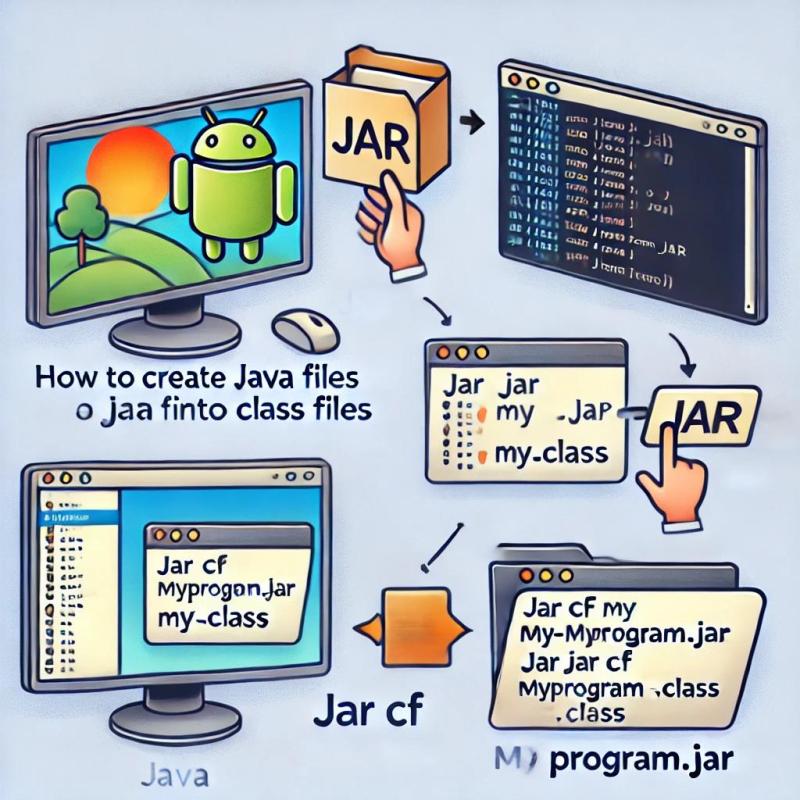
To create a .jar file, Java source code must first be compiled into bytecode using the `javac` compiler, then packaged into an archive using the `jar` utility. Below is a step-by-step procedure:1. Write Java Source Code
Save the code in a file (e.g., `Example.java`):
```java
public class Example {
public static void main(String[] args) {
System.out.println("Hello from a .jar file!");
}
}
```
2. Compile the Source Code
Use the `javac` command to generate bytecode (`Example.class`):
```
javac Example.java
```
3. Create a Manifest File (Optional but Recommended)
A `MANIFEST.MF` file specifies metadata, including the entry point for execution:
```
Main-Class: Example
```
4. Package the Bytecode into a .jar File
Use the `jar` command with the `cvfm` (create, verbose, file, manifest) options:
```
jar cvfm Example.jar MANIFEST.MF Example.class
```
Alternatively, if no manifest is provided, the JVM defaults to the class containing the `main()` method.
Role of the `Main-Class` Attribute in the Manifest File
The `Main-Class` attribute in the `MANIFEST.MF` file explicitly defines the entry point for the JVM during execution. Without this attribute, the JVM follows these rules:The `Main-Class` attribute ensures deterministic execution by specifying the exact class and method to invoke. For example:
```
Main-Class: com.example.MyApp
```
This directs the JVM to execute `MyApp.main()` upon running `java -jar MyApp.jar`.
System Requirements and Troubleshooting Common Errors
Running a .jar file requires specific system configurations and dependencies. Below are the minimum requirements and troubleshooting steps for common issues:-
Java Version Compatibility
The .jar file must be compiled with a Java version equal to or lower than the JRE version used for execution. For example:
- A .jar compiled with Java 8 will fail on Java 11 if not recompiled with `--release 8` flag.
- Check the error message for `UnsupportedClassVersionError`.
- Recompile with: ```
-
Operating System Compatibility
The JVM abstracts OS differences, but some .jar files may rely on native libraries (e.g., JNI calls). Ensure:
- The OS matches the target platform (e.g., Windows/Linux/macOS).
- Required native dependencies (e.g., `.dll`, `.so`) are included in the .jar or installed system-wide.
- If missing native libraries cause `UnsatisfiedLinkError`, verify the `java.library.path` or include the library in the .jar’s `lib/` directory.
-
Classpath and Module System
Modern Java (9+) uses the module system, requiring explicit module declarations. For modular .jar files:
- Use `--module-path` and `--module` flags: ```
- Non-modular .jar files require the `-cp` (classpath) flag: ```
- `NoClassDefFoundError` indicates missing classes. Verify the classpath or module dependencies.
-
Memory and Permissions
Large applications may require adjusted JVM memory settings:
```
java -Xmx512m -jar Example.jar
```Troubleshooting:
- `OutOfMemoryError` suggests insufficient heap space. Increase `-Xmx` (max heap) or optimize code.
- Permission errors (e.g., file access) may require running the .jar with elevated privileges or adjusting security policies.
Troubleshooting:
javac --release 8 Example.java
```
Troubleshooting:
java --module-path mods --module com.example.MyApp
```
java -cp "Example.jar:lib/*" com.example.MyApp
```
Troubleshooting:

Practical Applications of .jar Files
The Java Archive (JAR) format serves as a foundational component in software development, deployment, and execution across diverse environments, from integrated development environments (IDEs) to enterprise-grade applications. Its self-contained nature—bundling Java class files, metadata, and resources—enables seamless portability, modularity, and dependency resolution. This section explores real-world applications of .jar files, their integration into software ecosystems, and their role in enterprise deployment strategies, supplemented by structured use-case examples and comparative advantages.JAR files encapsulate the "write once, run anywhere" principle of Java, ensuring cross-platform compatibility while simplifying distribution and versioning.
Integration in Development Tools and IDEs
Development environments and build tools extensively leverage .jar files to provide extensibility, plugin support, and dependency management. For instance:The modular design of IDE plugins via .jar files reduces overhead in updates and minimizes conflicts between tooling versions.
Enterprise Deployment Scenarios
In enterprise environments, .jar files are pivotal for deploying scalable, maintainable applications, particularly in microservices architectures and web-based systems. Key deployment patterns include:- Spring Boot Executable JARs:
Spring Boot applications are frequently packaged as fat JARs (self-contained executables including embedded servers like Tomcat and all dependencies). For example, a Spring Boot app with Maven’s `spring-boot-maven-plugin` generates a `target/myapp-1.0.0.jar` that can be executed via:
java -jar myapp-1.0.0.jar
This eliminates the need for manual server configuration, aligning with DevOps practices for containerization (e.g., Docker images built from the JAR).
- Java EE/WildFly Deployments:
Traditional Java EE applications are deployed as .jar files (e.g., Enterprise Archive `.ear` files containing `.jar` modules) to application servers like WildFly or JBoss. The server’s classpath dynamically resolves dependencies listed in the JAR’s `MANIFEST.MF`.
- Android Applications:
Android apps are compiled into `.apk` files, which are essentially ZIP archives containing `.dex` files (converted from `.class` files) and resources. The Android build system (`dx` tool) repackages Java libraries into `.jar` files during the build process, ensuring compatibility with the Dalvik/ART runtime.
Fat JARs in Spring Boot reduce deployment complexity by embedding dependencies, while modular JARs in Java EE enable granular server-side scaling.
Real-World Use Cases Table
The following table summarizes practical applications of .jar files, highlighting their role in software delivery and execution:| Application | Purpose | Dependencies | Execution Command |
|---|---|---|---|
| Eclipse Plugin (e.g., Checkstyle Plugin) | Static code analysis integration into Eclipse IDE. |
|
Installed via Eclipse Marketplace; no direct command-line execution. |
| Apache Maven Plugin (e.g., maven-compiler-plugin) | Compiles Java source code during Maven build lifecycle. |
|
Invoked via Maven:mvn compile |
| Spring Boot Application (e.g., Spring PetClinic) | Standalone web application with embedded Tomcat. |
|
java -jar petclinic-0.1.0.jar |
| Android Library (e.g., Retrofit) | HTTP client for Android apps, packaged as an AAR (Android Archive). |
|
Included in app’s `build.gradle`; no standalone execution. |
| Apache Kafka Client | Distributed event streaming with Kafka brokers. |
|
java -jar kafka-console-producer-3.3.1.jar --broker-list localhost:9092 --topic test |
Advantages of Self-Contained .jar Distribution
The adoption of .jar files for software distribution offers several strategic benefits:- Portability Across Platforms:
JAR files adhere to the Java Virtual Machine (JVM) specification, ensuring identical behavior on Windows, Linux, or macOS without recompilation. This is critical for cross-platform tools like Jenkins or JUnit, which rely on consistent execution environments.
- Dependency Management:
Tools like Maven and Gradle automate dependency resolution, fetching transitive dependencies (e.g., a JAR requiring another JAR) from repositories. The `MANIFEST.MF` file or `pom.xml` specifies version constraints, reducing dependency hell scenarios.
- Modularity and Reusability:
JAR files enable code splitting via OSGi or Java modules (JPMS), allowing libraries to be reused across projects without duplication. For example, Google’s Guava library is distributed as a single .jar but internally modularized for selective inclusion.
- Simplified Deployment:
Fat JARs (e.g., Spring Boot executables) eliminate the need for separate library installations, streamlining deployment in cloud-native environments (e.g., Kubernetes pods running a single JAR).
- Versioning and Isolation:
The JVM’s classloader isolates dependencies per JAR, preventing conflicts between versions of the same library. This is particularly valuable in polyglot enterprise systems where multiple Java versions or frameworks coexist.
The JVM’s classloader hierarchy ensures that dependencies are resolved hierarchically, with child classloaders delegating to parent loaders, thus maintaining isolation.
Potential Drawbacks and Mitigations
Despite their advantages, .jar files introduce challenges that require careful management:- Version Conflicts:
Transitive dependencies may pull incompatible versions of the same library (e.g., `log4j-core-2.17.1.jar` vs. `log4j-core-2.14.1.jar`). Solutions include:
Security and Best Practices for .jar Files
Security Risks Associated with .jar Files
Unsigned or improperly secured .jar files pose significant risks, including code injection, privilege escalation, and supply-chain attacks. Attack vectors exploit weaknesses such as:Example of a Supply-Chain Attack:
In 2017, the CCleaner malware was distributed via an unsigned .jar file embedded in a compromised update mechanism. The attacker replaced a legitimate build tool’s dependency with a malicious .jar, which exfiltrated user data to a command-and-control server. This incident highlighted the need for code signing, dependency verification, and secure build pipelines.
Digital Signatures and Code Signing
Digital signatures authenticate the origin of a .jar file and ensure its integrity. Java uses PKCS#7 signatures, where a KeyStore (JKS/PKCS12) holds private keys and certificates. Signed .jar files include:Key Benefits:
Step-by-Step: Signing a .jar File with `jarsigner`
To sign a .jar file, follow these steps using `jarsigner` (included in the JDK) and a Java KeyStore (JKS).Prerequisites:
Procedure:
1. Generate a Keystore (if none exists):
```bash
keytool -genkey -alias myalias -keyalg RSA -keystore mykeystore.jks -validity 3650
```
2. Sign the .jar File:
```bash
jarsigner -keystore mykeystore.jks -storepass yourpassword -signedjar signed.jar unsigned.jar myalias
```
3. Verify the Signature:
```bash
jarsigner -verify -certs signed.jar
```
jar verified.
Warning:
No timestamping info available. The timestamp might not be trusted!
```
Note: For production, use a timestamping server (e.g., DigiCert, Sectigo) to prevent signature expiration due to keystore validity periods.
Exploiting the Manifest: Malicious `Main-Class` Override
The `MANIFEST.MF` file in a .jar can be weaponized to execute unauthorized code. A legitimate manifest entry for a `Main-Class` might look like:```
Main-Class: com.example.App
```
However, an attacker could override this to redirect execution to a malicious class:
```
Main-Class: com.example.MaliciousPayload
```
Attack Scenario:
1. A developer uploads a signed .jar with:
```
Main-Class: com.example.LegitimateApp
```
2. An attacker replaces the .jar with a modified version (same name) where:
Mitigation:
Best Practices for Secure .jar Development and Distribution
Adhering to security best practices minimizes risks during development, testing, and deployment. Below are critical guidelines categorized by lifecycle stage.Development Phase:
- Dependency Management:
Build and Signing:
GitHub Actions Example
```
jarsigner -tsa http://timestamp.digicert.com signed.jar myalias
```
Documentation and Deployment:
Implementation-Version: 1.8+
Java-Version: 1.8.0_202+
```
- Distribution Channels:
Runtime and Monitoring:
Permissions: none
```
Tools and Methods for Working with .jar Files
The manipulation of Java Archive (.jar) files—whether for development, troubleshooting, or reverse engineering—requires specialized tools that balance functionality, safety, and ease of use. While some utilities are command-line driven and offer granular control, others provide graphical interfaces for accessibility. The choice of tool depends on the task: creating, inspecting, extracting, or modifying .jar files each demands distinct capabilities. Below, a comparative analysis of widely used tools is presented, followed by practical methods for safely editing .jar contents, including manifest manipulation, class file replacement, and dependency-aware repackaging.Comparison of Tools for .jar File Operations
Selecting the appropriate tool for .jar file operations involves evaluating features such as compatibility, automation support, and risk of corrupting the archive. The following table contrasts common tools across four criteria: Tool Name, Primary Function, Pros, and Cons.| Tool Name | Primary Function | Pros | Cons |
|---|---|---|---|
jar (Java Development Kit) |
Command-line utility for creating, updating, and extracting .jar files. Part of the JDK. |
|
|
| 7-Zip | General-purpose archiver with support for .jar files (treated as ZIP archives). |
|
|
| WinRAR | Windows-centric archiver with .jar support (via ZIP compatibility). |
|
|
| IntelliJ IDEA (Built-in Tools) | IDE-specific features for .jar manipulation, including extraction, dependency analysis, and repackaging. |
|
|
| JD-GUI / JD-Core | Decompiler and inspector for .jar files, focusing on reverse engineering. |
|
|
jar utility or IntelliJ IDEA minimize risks of corruption when repackaging, as they validate Java-specific structures (e.g., class file headers, manifest syntax).jar, Bash/PowerShell scripts) are preferred for CI/CD pipelines, while GUIs (7-Zip, WinRAR) suit ad-hoc tasks.jar tool instead.Safe Extraction and Modification of .jar Files
Modifying a .jar file—whether to debug, patch, or customize—requires careful handling to preserve its integrity. The process involves four critical steps: extraction, content editing, manifest updates, and repackaging. Below, a structured approach ensures dependencies and metadata remain intact.Prerequisites:
example.jar).Step-by-Step Workflow:
1. Extract the .jar File:
The .jar format is a ZIP archive, so standard extraction tools (e.g., unzip, 7-Zip) can decompress it into a directory. The manifest file (META-INF/MANIFEST.MF) must be preserved, as it contains critical metadata like class paths and versioning.
2. Locate and Edit the Manifest File:
The manifest is a plaintext file defining attributes such as:
Main-Class: com.example.AppModifications must adhere to Java’s JAR File Specification to avoid runtime errors.Class-Path: lib/dependency1.jar lib/dependency2.jar
Sealed: true
3. Replace or Add Class Files:
example.jar → example/).com/example/App.class) with updated versions, ensuring:com/example/newfeature/).4. Repackage the .jar File:
Use the jar utility to recreate the archive with the updated manifest and class files. Critical flags include:
-C: Change directory for adding files.-m: Include the manifest file.FAQ
What is a .jar file and how does it work?
A .jar (Java Archive) file is a package format used to bundle Java class files, resources (like images or configs), and metadata into a single compressed file. It works by aggregating multiple files into one, making distribution and execution easier—Java applications run by loading classes from the JAR at runtime. The format is based on ZIP, so tools like WinRAR or 7-Zip can extract its contents.
What is a JAR file in Java?
A JAR file in Java is a standardized archive format that packages compiled Java bytecode (`.class` files), libraries, and metadata into a single file. It simplifies deployment by allowing applications to include all dependencies in one distributable unit. JAR files can also contain manifest files to specify execution details, like the main class.
What is a JAR file in Minecraft?
In Minecraft, a JAR file typically refers to the game’s main executable or mod files. The base game is distributed as a JAR that contains the Java code, assets, and launcher logic. Mods (like Forge or Fabric) are also often distributed as JARs, which players add to their game to extend functionality.
What is a JAR file used for?
JAR files are primarily used to distribute Java applications and libraries as single, portable packages. They reduce file clutter by bundling classes, resources, and dependencies, and support digital signatures for security. Developers also use them to create modular applications or plugins.
What is a JAR file type?
A JAR file is a type of archive file format specifically designed for Java environments, built on the ZIP standard. It stores compiled Java programs (bytecode), configuration files, and other assets in a compressed container. Unlike EXE files, JARs require a Java Runtime Environment (JRE) to execute.
What is a JAR file extension?
The JAR file extension is `.jar`, which stands for "Java Archive." It indicates the file follows the Java Archive format, though its underlying structure is identical to a ZIP file. You can rename a `.jar` to `.zip` and extract it using standard tools.
Leave a Comment
Comments are moderated before appearing. The data you submit is processed according to the Privacy Policy of Voltefac.