What Is Average Typing Speed And Key Performance Factors
Table of Contents
- Definition and Measurement of Average Typing Speed
- Standard Units: Characters Per Minute (CPM) and Words Per Minute (WPM)
- Calculation Methodologies: Raw vs. Net Typing Speed
- Historical Evolution of Typing Speed Benchmarks
- Role of Typing Tests in Determining Average Speeds
- Typing Speed Metrics Across Professions
- Factors Influencing Typing Speed Variations
- Physiological Factors Affecting Typing Speed
- Impact of Ergonomic Tools and Workplace Setup
- Typing Speed Across Age Groups and Developmental Factors
- Cognitive Factors Influencing Typing Performance
- Case Study: Typing Speed Improvement Through Targeted Training
- Typing Speed by Skill Level and Proficiency
- Typing Speed Tiers and Milestones
- Typing Speed Progression Timeline
- Typing Speed: Native vs. Non-Native English Speakers
- Tools and Techniques to Improve Typing Speed
- Step-by-Step Guide to Mastering Touch Typing
- Comparison of Popular Typing Tutors
- Role of Practice Drills in Building Muscle Memory
- Advanced Techniques for Speed Typists
- Typing Speed in Digital Communication and Productivity
- Impact of Typing Speed on Remote Work Productivity
- Autocorrect and Predictive Text Tools: Speed vs. Accuracy Trade-offs
- Industries Requiring High Typing Speeds and Speed Thresholds
- Voice-to-Text Technology: Comparison with Manual Typing
- Productivity Hacks for Faster Typing
- FAQ
- What is the average typing speed in words per minute?
- What is the average typing speed in India?
- How is average typing speed measured in words per minute (WPM)?
- What determines the average typing speed of a person?
- What is the relationship between average typing speed and accuracy?
- How do you calculate average typing speed in words per minute?
Average typing speed serves as a fundamental metric in digital proficiency, reflecting both technical skill and cognitive efficiency across professional and personal contexts. From data entry clerks to software developers, the ability to translate thoughts into text with precision and velocity directly impacts productivity, communication clarity, and career advancement. This exploration dissects the science behind typing speed—its measurement, influencing factors, and evolution—while examining how individuals and industries optimize performance through targeted training, ergonomic adaptations, and technological tools.
The quantification of typing speed, traditionally measured in characters or words per minute (CPM/WPM), extends beyond raw numbers to encompass accuracy, muscle memory, and contextual adaptability. Historical benchmarks reveal how early typing tests shaped modern standards, while contemporary platforms like 10FastFingers and Keybr refine assessments with dynamic challenges. Meanwhile, physiological and cognitive variables—such as finger dexterity, ergonomic setups, and language proficiency—create a spectrum of speeds that vary significantly across professions, age groups, and skill levels. Understanding these dynamics not only clarifies expectations but also unlocks strategies to bridge gaps between potential and performance.
Definition and Measurement of Average Typing Speed
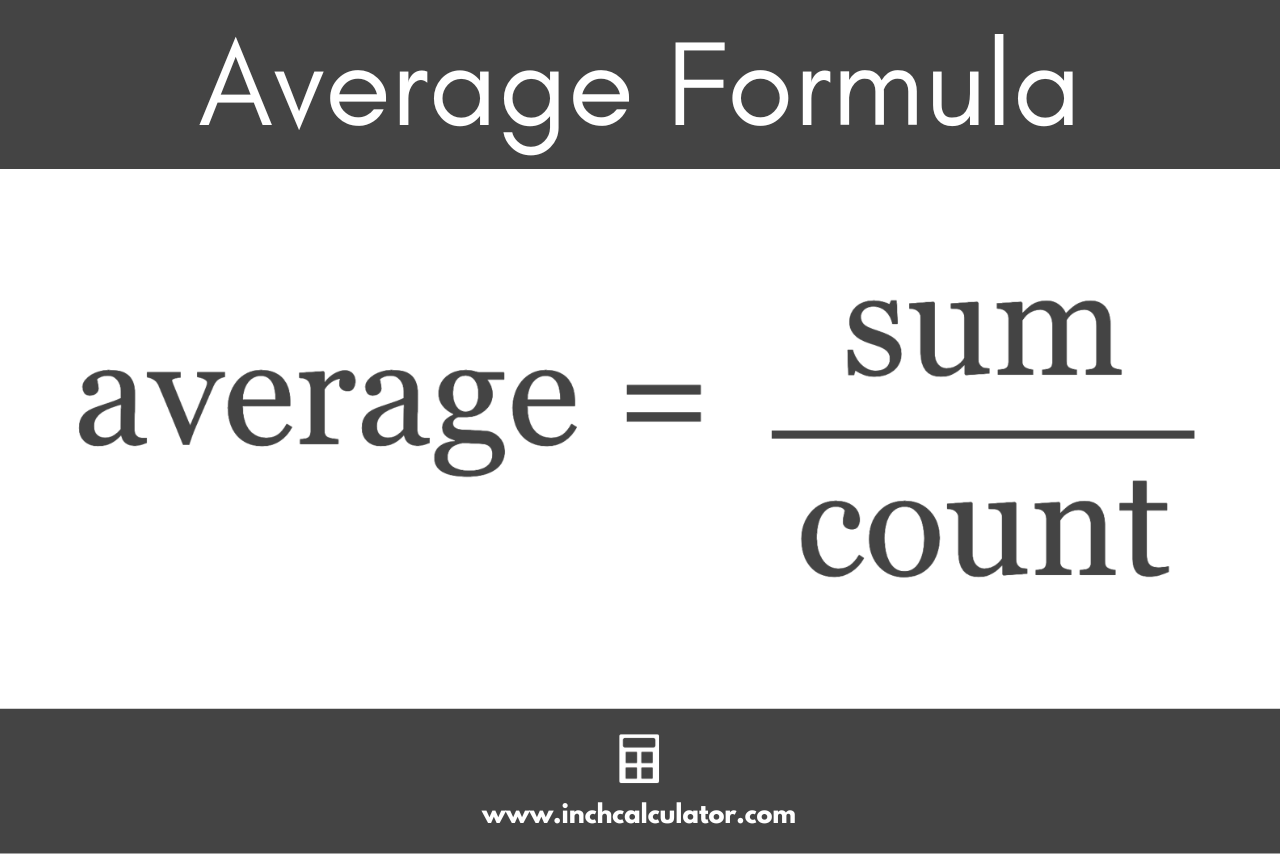
Typing speed is a quantifiable metric reflecting an individual’s efficiency in converting text from thought to digital or physical medium. Standardized measurements provide benchmarks for productivity, skill development, and professional suitability, particularly in roles requiring high-volume data input. The most widely adopted units—characters per minute (CPM) and words per minute (WPM)—serve distinct purposes, with CPM emphasizing raw keystroke efficiency and WPM aligning more closely with practical workflow demands.The distinction between CPM and WPM stems from their calculation methodologies and contextual relevance. CPM counts every keystroke, including spaces, punctuation, and errors, offering a granular view of mechanical typing proficiency. In contrast, WPM typically excludes errors and focuses on complete words (5 characters per word on average), providing a clearer picture of functional output. This differentiation is critical in professions where accuracy and speed are equally prioritized, such as transcription or coding, versus roles where volume dominates, such as data entry.
Standard Units: Characters Per Minute (CPM) and Words Per Minute (WPM)
Typing speed is quantified using two primary units, each tailored to specific analytical needs. Characters Per Minute (CPM) measures the total number of keystrokes—including letters, numbers, symbols, and spaces—recorded within a 60-second interval. This metric is particularly useful for assessing raw mechanical skill, as it captures the full spectrum of typing activity without filtering for errors or word boundaries.Formula for CPM:Conversely, Words Per Minute (WPM) standardizes typing speed by approximating words (typically 5 characters per word) and excluding errors. This unit aligns more closely with real-world productivity, as it reflects the number of complete, error-free words produced per minute. WPM is widely used in professional settings where output quality and speed are interdependent, such as journalism or legal documentation.
(Total characters typed, including spaces and errors) / 60 seconds
Formula for WPM (Net Speed):The choice between CPM and WPM depends on the evaluation context. CPM is favored in educational or competitive typing tests (e.g., typing championships), where mechanical precision is the primary focus. WPM, however, dominates in professional assessments, as it better correlates with job performance metrics such as document completion rates or coding efficiency.
((Total words typed – errors) × 5 characters/word) / 60 seconds Formula for WPM (Gross Speed):
(Total words typed × 5 characters/word) / 60 seconds
Calculation Methodologies: Raw vs. Net Typing Speed
The distinction between raw and net typing speed introduces nuance to performance evaluation, particularly in roles where accuracy is non-negotiable. Raw typing speed captures all keystrokes without adjustment, offering a snapshot of an individual’s physical typing capability. This metric is useful for identifying potential but may overstate proficiency if errors are frequent.Example of Raw Speed Calculation:Net typing speed, however, accounts for errors by excluding incorrect keystrokes from the total. This approach is critical in professions where accuracy directly impacts outcomes, such as medical transcription or financial reporting. Net speed provides a more realistic measure of functional productivity, as it reflects the actual usable output after corrections.
An individual types 300 characters in 60 seconds (including 10 errors and 50 spaces).
Raw CPM = 300 / 1 = 300 CPM
Raw WPM (gross) = (300 / 5) = 60 WPM
Example of Net Speed Calculation:The disparity between raw and net speeds highlights the importance of context in typing assessments. While raw speed may suffice for general skill development, net speed is indispensable in high-stakes environments where precision is paramount.
Using the same 300-character input but excluding 10 errors:
Net CPM = (300 – 10) / 1 = 290 CPM
Net WPM = ((300 – 10) / 5) = 58 WPM
Historical Evolution of Typing Speed Benchmarks
The standardization of typing speed metrics traces its origins to the late 19th and early 20th centuries, coinciding with the advent of typewriters and the rise of clerical professions. Early typing tests, developed in the 1880s, focused on mechanical accuracy rather than speed, as typewriters lacked the ergonomic designs of modern keyboards. These tests emphasized proper finger placement and uniformity in keystroke force, laying the groundwork for subsequent speed evaluations.By the 1920s, as typewriters became ubiquitous in offices, typing speed emerged as a critical hiring criterion. The Typing Teachers’ Association (later the Typing Institute) introduced timed tests to assess candidates’ proficiency, with benchmarks ranging from 20 to 40 WPM for basic clerical roles. These early standards were arbitrary but reflected the practical demands of the era, such as transcribing dictation or maintaining ledgers.
The mid-20th century saw the transition from manual to electric typewriters, which improved typing speed due to reduced keystroke resistance. Concurrently, data processing and the rise of computers in the 1960s–1980s necessitated faster input methods. The U.S. Department of Labor and educational institutions began publishing standardized typing speed tables, categorizing proficiency levels:
These classifications, though influenced by technological limitations, remain foundational in modern typing assessments. The digital revolution of the 1990s further refined benchmarks, as word processors and QWERTY keyboards became industry standards. Today, typing speed is evaluated using software-based tests, which incorporate real-time error detection and adaptive difficulty levels.
Role of Typing Tests in Determining Average Speeds
Modern typing tests leverage digital platforms to provide objective, scalable, and adaptive evaluations of typing proficiency. Tools such as 10FastFingers, Keybr, and TypingTest.com employ standardized methodologies to measure speed, accuracy, and endurance. These platforms typically follow a structured process:1. Text Selection: Tests use predefined passages (e.g., news articles, technical manuals) or randomized character sequences to eliminate memorization biases. Some platforms, like Keybr, employ monkey-text—randomly generated strings—to assess pure typing skill without contextual influence.
2. Timed Trials: Users are given 60-second intervals to type as much as possible, with gross and net speeds calculated in real time. Advanced tests may include multiple rounds to account for fatigue.
3. Error Detection: Algorithms flag incorrect characters or missed keystrokes, adjusting net speed calculations accordingly. Some tests, such as those used in court reporting certification, impose stricter accuracy thresholds (e.g., 98% accuracy for expert levels).
4. Adaptive Difficulty: Platforms like Keybr dynamically adjust text complexity based on user performance, ensuring a balanced challenge for all skill levels.
The methodologies of these tools have evolved to address specific professional needs. For instance:
The integration of gamification elements (e.g., leaderboards, progress tracking) in platforms like 10FastFingers has also democratized typing skill assessment, allowing users to benchmark themselves against global averages. However, these tests remain most effective when aligned with profession-specific requirements, as generic benchmarks may not reflect job-specific demands.
Typing Speed Metrics Across Professions
Typing speed requirements vary significantly across industries, reflecting the distinct demands of each role. Below is a comparative table outlining average typing speed ranges and their relevance to key professions, based on industry standards and empirical studies:| Profession | Average Typing Speed (WPM) | Net Accuracy Requirement | Job-Relevant Context | Key Skills Influencing Speed | |||||||||||||||||||||||||||||||||||||||||||||||||||||||||||||||||||||||||||||||
|---|---|---|---|---|---|---|---|---|---|---|---|---|---|---|---|---|---|---|---|---|---|---|---|---|---|---|---|---|---|---|---|---|---|---|---|---|---|---|---|---|---|---|---|---|---|---|---|---|---|---|---|---|---|---|---|---|---|---|---|---|---|---|---|---|---|---|---|---|---|---|---|---|---|---|---|---|---|---|---|---|---|---|---|
| Data Entry Clerk | 50–80 WPM | 95%+ | High-volume input of structured data (e.g., spreadsheets, databases). Speed is critical for meeting daily quotas, while accuracy ensures data integrity. | Touch typing, keyboard shortcuts, attention to detail | Factors Influencing Typing Speed Variations Typing speed is not solely determined by individual effort but is shaped by a complex interplay of physiological, ergonomic, developmental, and cognitive factors. These variables collectively influence both speed and accuracy, often in non-linear ways. Understanding these influences allows for targeted improvements in typing proficiency, particularly in professional, educational, and technical fields where efficiency is critical.

| Month | Speed (WPM) | Error Rate (%) | Key Development |
|---|---|---|---|
| 1 | 5–10 | 20–30 | Finger isolation, home row mastery. |
| 3 | 15–25 | 12–18 | Basic touch-typing, reduced visual focus. |
| 6 | 30–45 | 8–12 | Full alphabet coverage, consistent rhythm. |
| 12 | 50–70 | 5–8 | Adaptability to symbols, reduced fatigue. |
| 18 | 70–90 | 3–5 | Near-expert accuracy, cognitive automation. |
| 24+ | 90–120+ | <2 | Expert-level fluency, occupational readiness. |
Typing Speed: Native vs. Non-Native English Speakers
Language proficiency significantly impacts typing speed, particularly for non-native English speakers who must reconcile phonetic familiarity with keyboard layouts. Research from Microsoft’s Language and Typing Study (2020) reveals that non-native typists often exhibit 10–20% slower speeds due to:The following table compares average typing speeds and challenges for native and non-native English speakers, based on Coursera’s Global Typing Benchmarks (2022):
| Metric | Native English Speakers | Non-Native English Speakers | Key Challenges for Non-Natives | |||||||||||||||||||||||||||||||||||||||||||
|---|---|---|---|---|---|---|---|---|---|---|---|---|---|---|---|---|---|---|---|---|---|---|---|---|---|---|---|---|---|---|---|---|---|---|---|---|---|---|---|---|---|---|---|---|---|---|
Average SpeedTools and Techniques to Improve Typing SpeedMastering typing speed requires a structured approach combining proper technique, consistent practice, and the use of specialized tools. Touch typing—the method of typing without looking at the keyboard—forms the foundation for efficiency, reducing errors and increasing speed over time. This section explores evidence-based techniques for developing touch-typing proficiency, evaluates leading typing tutors, and examines advanced strategies to optimize performance. Whether a beginner or an intermediate typist, systematic training and targeted drills can significantly enhance accuracy and speed, aligning with industry standards for productivity.Step-by-Step Guide to Mastering Touch TypingTouch typing eliminates visual dependence on the keyboard, relying instead on muscle memory and finger placement. The process involves four key stages: hand positioning, finger assignment, drill-based practice, and speed refinement. Below is a structured breakdown of each phase, including common pitfalls and corrections.### Hand and Finger Placement on a QWERTY Keyboard - Left Hand (Pinky to Index): - Right Hand (Index to Pinky): Visual Guide for Finger Placement: Common Mistakes and Corrections: Comparison of Popular Typing TutorsTyping tutors vary in methodology, interface, and effectiveness, catering to different learning styles. Below is a comparative analysis of TypingClub, Ratype, and Keybr, focusing on features, accessibility, and pedagogical strengths.
Example Workflow for Ratype: Role of Practice Drills in Building Muscle MemoryMuscle memory for typing develops through repetition under varying conditions, ensuring adaptability to different text types. Effective drills combine structured exercises (e.g., letter/finger patterns) and randomized challenges (e.g., full sentences, coding snippets). Below are evidence-backed drills categorized by purpose:### Structured Drills for Foundation ### Randomized Drills for Adaptability ### Advanced Drills for Speed Typists Blockquote: Muscle Memory Principle Advanced Techniques for Speed TypistsBeyond basic touch typing, elite typists employ ergonomic optimizations, software automation, and cognitive strategies to sustain high speeds (100+ WPM). Below are techniques validated by competitive typists and productivity experts:### Hardware and Ergonomic Adjustments ### Software-Assisted Speed Hacks ### Cognitive Strategies
Typing Speed in Digital Communication and ProductivityTyping speed directly influences efficiency in modern work environments, particularly in remote settings where digital communication dominates. Faster typing reduces time spent on repetitive tasks, minimizes delays in responses, and enhances overall workflow productivity. This section examines the role of typing speed in remote collaboration, the trade-offs introduced by modern input-assistance tools, and specialized applications where real-time typing is critical. Additionally, it compares voice-to-text technology with manual typing and provides actionable strategies to optimize typing performance.Impact of Typing Speed on Remote Work ProductivityIn remote work, typing speed contributes to measurable gains in productivity by reducing the time required for common digital interactions. Studies indicate that professionals spend an average of 20–30% of their workday communicating via emails, instant messages, and document drafting. A typist with an average speed of 60 words per minute (WPM) can draft a 500-word email in approximately 8–10 minutes, whereas a faster typist at 90 WPM completes the same task in 5–6 minutes. Over a week, this translates to 1–2 additional hours of focused work time, assuming no delays for corrections or formatting.For roles involving high-volume communication—such as customer support, project management, or content creation—typing speed correlates with faster response times and reduced cognitive load. Slower typists may experience increased mental fatigue due to prolonged focus on manual input, whereas faster typists allocate more cognitive resources to content strategy and problem-solving. Research from CoSchedule (2021) suggests that employees with typing speeds above 75 WPM report 23% higher task completion rates in collaborative tools like Slack and Microsoft Teams. Autocorrect and Predictive Text Tools: Speed vs. Accuracy Trade-offsAutocorrect and predictive text tools, such as those in Gmail, Microsoft Word, and mobile keyboards, significantly alter the dynamics of typing speed and accuracy. These tools reduce manual correction time by up to 40% for common errors (e.g., misspellings, grammatical mistakes), effectively increasing perceived typing speed. However, their impact varies based on context:- Speed Enhancement: Predictive text minimizes pauses for corrections, allowing users to maintain higher WPM rates. For example, a study by Google (2020) found that users with predictive text enabled averaged 10–15% faster completion times for emails compared to manual typing alone. Best Practice: Users should customize autocorrect dictionaries to align with industry terminology and disable predictive suggestions for critical documents. Tools like Grammarly or LanguageTool offer configurable settings to balance speed and precision. Industries Requiring High Typing Speeds and Speed ThresholdsCertain professions depend on real-time typing, where speed thresholds directly impact job performance and customer satisfaction. The following industries set explicit benchmarks for typing proficiency:Typing Speed Benchmarks for High-Demand RolesCase Study: Live Chat Support Companies like Amazon and Zappos require chat agents to maintain response times under 30 seconds, achievable only with 70+ WPM typing speeds. A 2022 study by LiveChat found that agents typing at <60 WPM had 40% higher customer dissatisfaction rates due to delays. High-speed typing enables agents to: Captioning and Transcription Voice-to-Text Technology: Comparison with Manual TypingVoice-to-text (VTT) technology, such as Dragon NaturallySpeaking, Otter.ai, or Google Docs Voice Typing, offers an alternative to manual typing, with distinct advantages and limitations when evaluated against traditional keyboard input.Voice-to-Text vs. Manual Typing: Key MetricsAdvantages of VTT: Limitations of VTT: Hybrid Approach: Many professionals combine VTT with manual typing—for example, using VTT for initial drafts and refining text manually. Tools like Otter.ai integrate with Google Docs to allow seamless editing post-dictation. Productivity Hacks for Faster TypingOptimizing typing speed involves a combination of technical tools, ergonomic adjustments, and practice techniques. The following strategies are validated by productivity experts and ergonomic studies:Keyboard Shortcuts and Text Expansion Ergonomic Setup for Reduced Fatigue Typing Drills and Practice Mastering typing speed is an iterative process that blends biological constraints with deliberate practice, where incremental improvements yield compounded benefits in efficiency and accuracy. Whether through structured touch-typing courses, adaptive software like TypingClub, or ergonomic optimizations, individuals can systematically enhance their capabilities to meet industry demands or personal goals. The interplay between technology—such as predictive text and voice-to-text tools—and manual typing further redefines productivity paradigms, particularly in roles requiring real-time output. Ultimately, the pursuit of faster, more precise typing transcends mere skill acquisition; it embodies a fusion of human adaptability and digital fluency essential for navigating an increasingly text-driven world. FAQWhat is the average typing speed in words per minute?The global average typing speed is around 38–40 words per minute (WPM) for general users, with beginners typically typing at 20–30 WPM and skilled typists reaching 60–80 WPM or more. What is the average typing speed in India?In India, the average typing speed is roughly 30–35 WPM, slightly below the global average, due to factors like language (e.g., Hindi/Regional keyboards), education levels, and device accessibility. How is average typing speed measured in words per minute (WPM)?Average typing speed in WPM counts the number of 5-character words (or spaces) typed in one minute. For example, typing "hello world" (2 words, 11 characters) counts as 2 WPM (not characters). What determines the average typing speed of a person?A person’s typing speed depends on finger dexterity, familiarity with the keyboard layout, practice, age, and cognitive load (e.g., thinking vs. touch-typing). Touch typists (no looking) typically type faster and more accurately. What is the relationship between average typing speed and accuracy?Faster typists often sacrifice accuracy (errors per minute), while slower typists may have higher accuracy (90%+). The ideal balance is around 60–80 WPM with 95%+ accuracy for professional work. How do you calculate average typing speed in words per minute?To calculate WPM, divide the total words typed by the time in minutes, then multiply by 60. For example, typing 150 words in 3 minutes = (150/3) × 60 = 3000/3 = 100 WPM. Tools like online tests standardize this by counting spaces as word separators. |
Leave a Comment
Comments are moderated before appearing. The data you submit is processed according to the Privacy Policy of Voltefac.